

IronCAD 3D Modeling Fun!
Fun with a Simple Loft!
Those Intellishapes are Cool!
I saw this great simple part and it would be fun to create a lesson.
Download IronCAD and follow along.
When I introduce IronCAD’s very flexible design paradigm I have a hard time to get the Pro/e clone users, like Solidworks and other programs to understand the drag and drop design paradigm.
IronCAD Drag and Drop is based on primitive shape design but uses much more sophisticated Intellishapes available in a standard or custom catalog. It is the only integrated history/direct edit MCAD system. You usually use start with drag and drop functionality then you have the option of sketching, direct edit or surfacing when required, making it the most flexible modeling system.
Watch how fun this is with drag and drop, shell and editing an intellishape. A totally different, more productive and much more “fun” to do!
Learning IronCAD! Lesson 1
Setting up the Scene (Workspace)
We will set the units to MM and insert a standalone sketch into the scene. It drops in the top view at X0Y0Z0! We will set it to iso view and create a 20mm circle!
We will be using our sketching feature for this feature!
Learning IronCAD! Lesson 3Streamlined Sketching
(Unconstrained Sketching)

We will now create a new standalone sketch and locate it and create the ellipse!

Now to add the guided lines. We create a sketch on the Z-X plane, it automatically locates the plane at X0YZ0 and create our first guide curve.
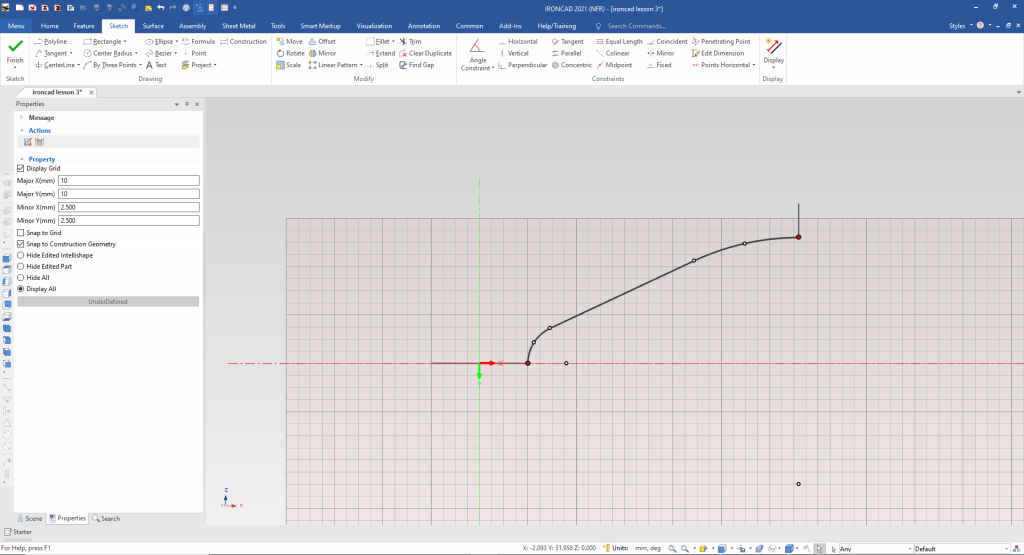
We save the sketch and then we copy and paste it and then edit the new sketch using existing graphic.
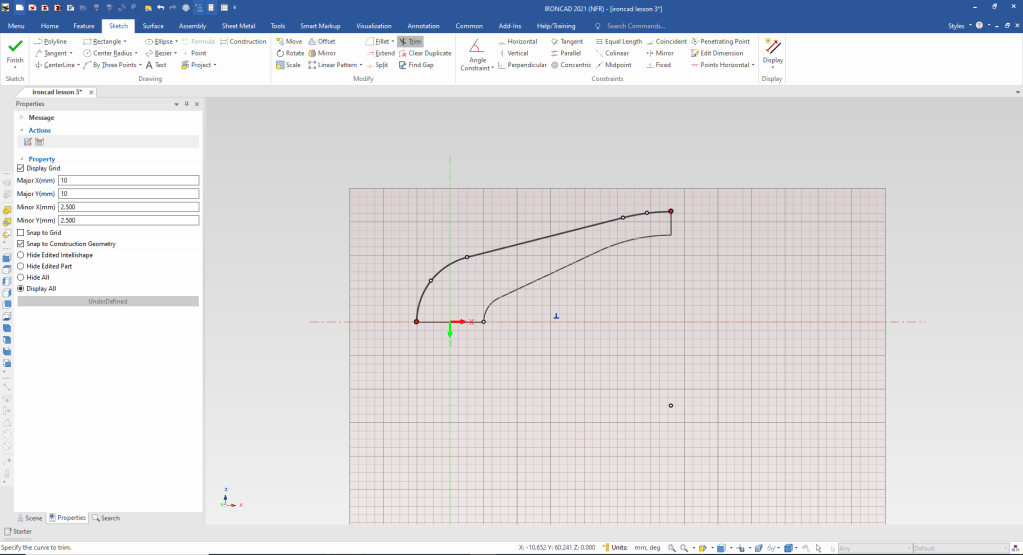
We are now ready to create our loft.
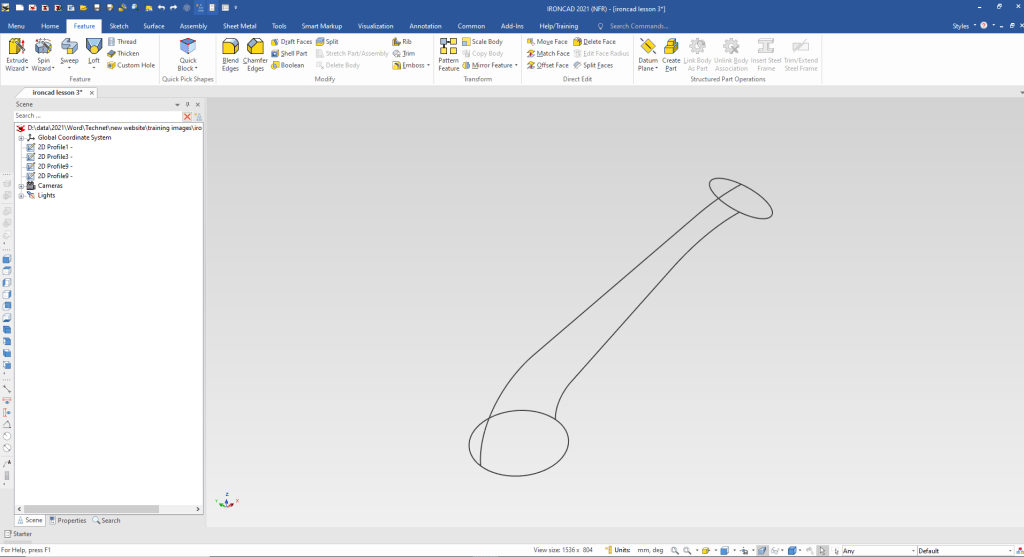
We select the loft command and create a standalone part. We then pick the two profiles making sure that they both set to the same direction and then pick the two guide curves.

We select okay and we have our lofted feature. We suppress our sketches, keeping them for future use!
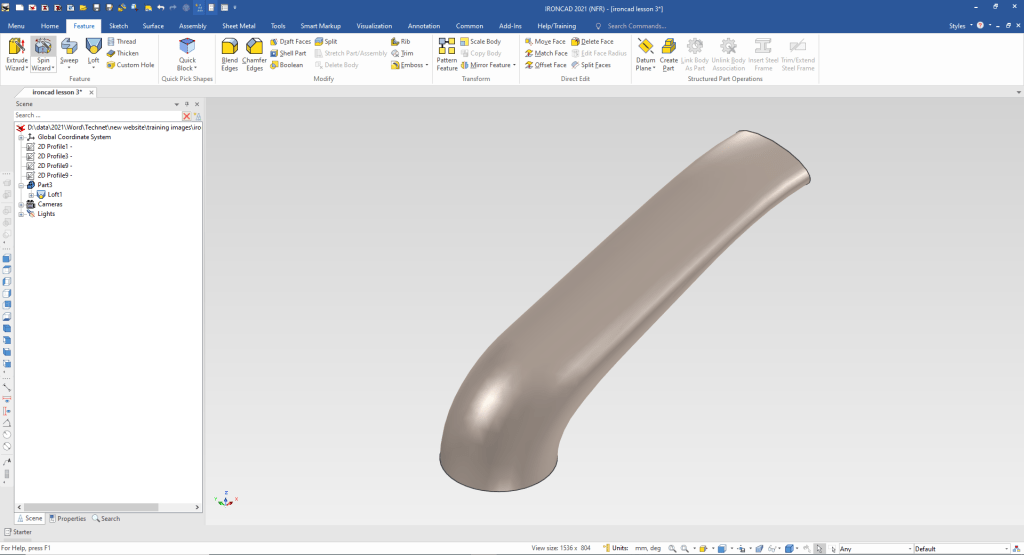
We click down to the face lever and pull the handle to the correct distance to create the two extrusions.
Iron CAD has four levels of operation assembly which is yellow, part which is blue, feature which is yellow and face or surface which is green.

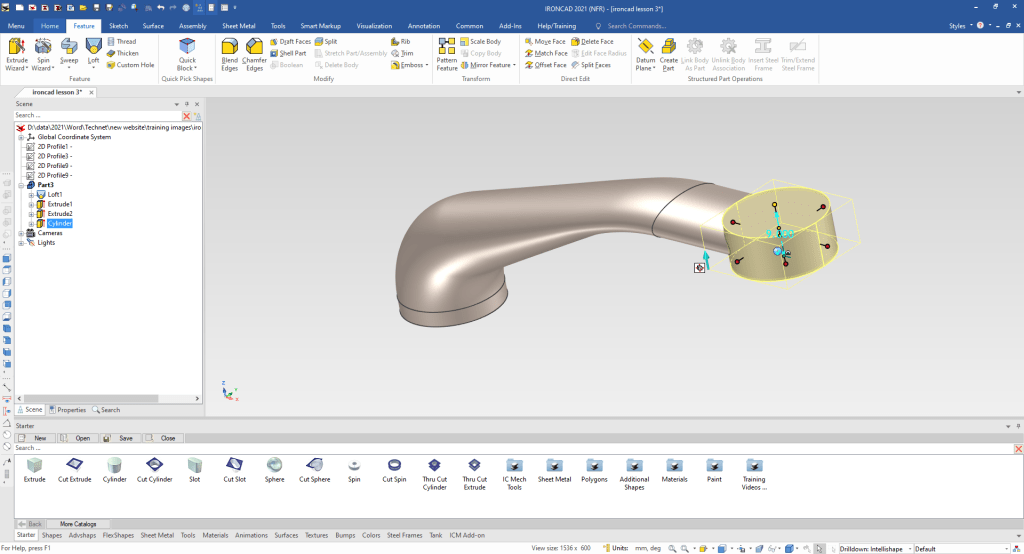
We set the distance and we are ready for our next feature. We drag and drop a cylinder to the center of the ellipse rotate it with the Triball and size it! There are many clever ways to manipulate a intellishape.
We will also display the catalog to see where we are selecting the intellishapes. I mostly work with it in the autohide mode for more scene real estate.
Learning IronCAD! Lesson Two
Drag and Drop Design
Designing with Shapes
Learning IronCAD! Lesson 4
IronCAD Intellishape Deconstructed
What are we Dragging and Dropping?
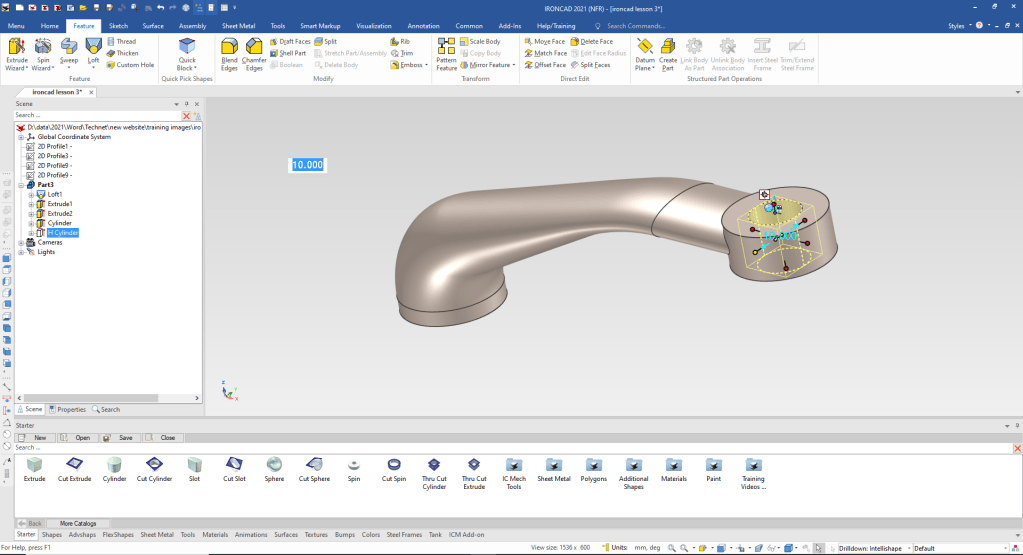
We will put our hole in the cylinder by dragging and dropping a cut cylinder to the center of the cylinder and sizing it.
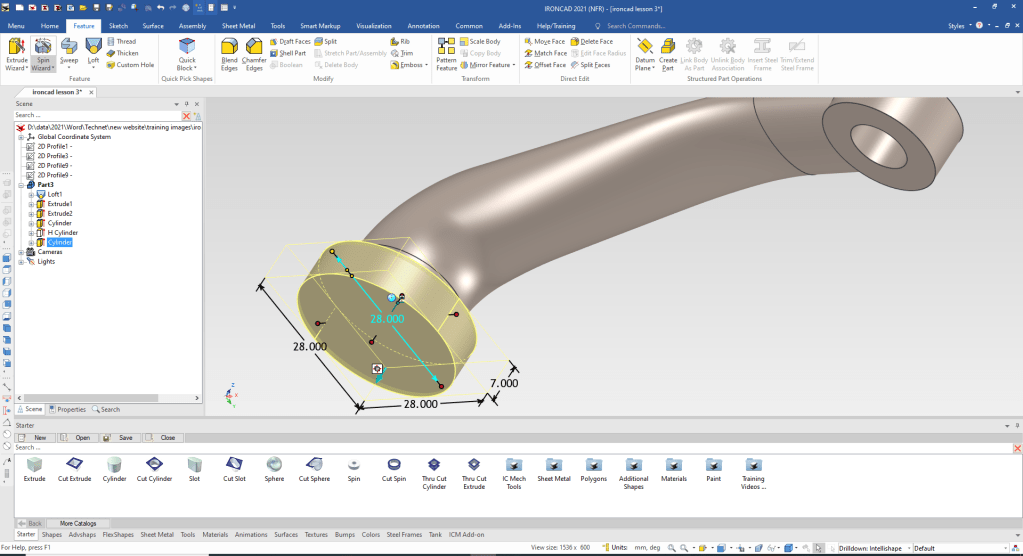
We drag and drop a cylinder to the bottom face to create the base and size it! I turned on the size box dimensions for a bit of clarity!
Now the shaft. Just another drag and drop cylinder!
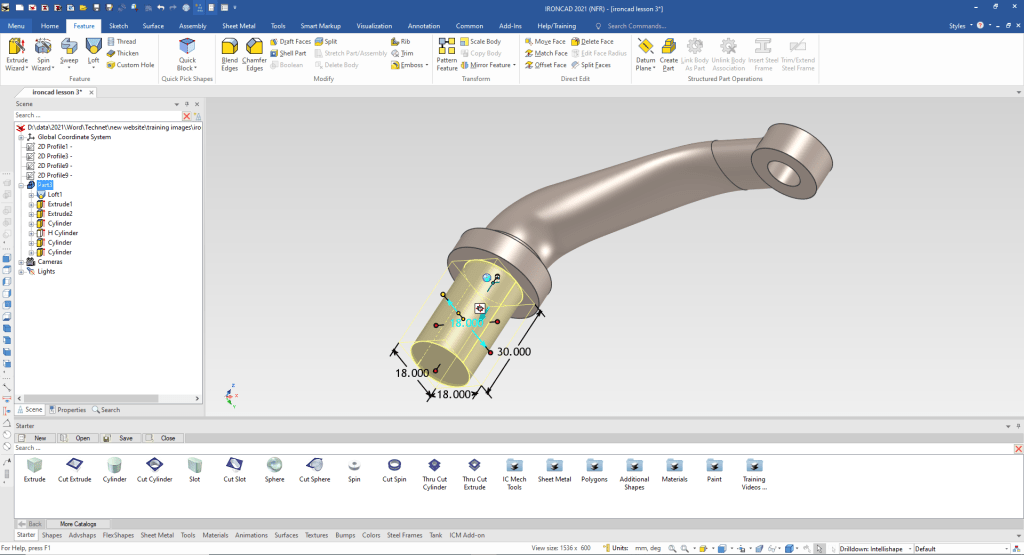
We drag and drop a cylinder and create the threaded feature. Then we drag and drop a cut slot size it and locate it.
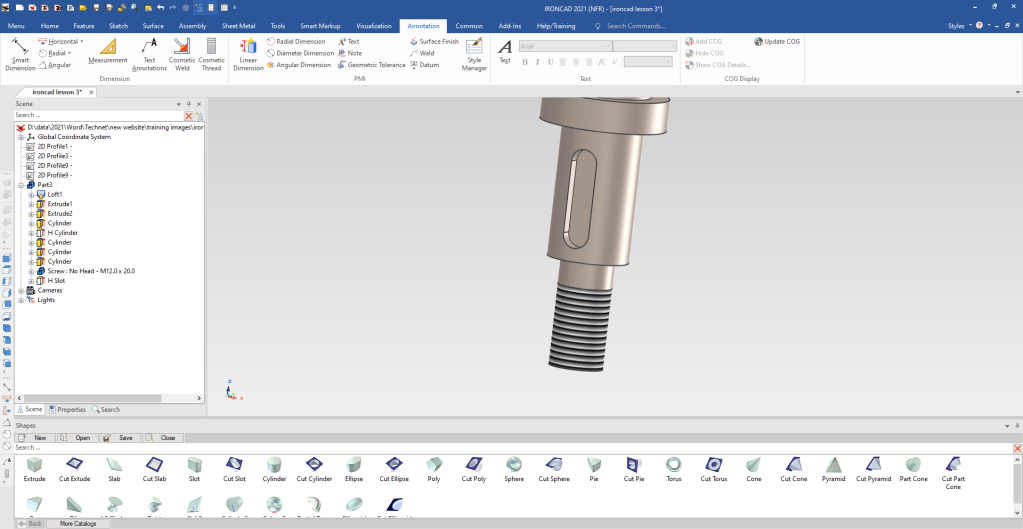
Add the blends and chamfers.
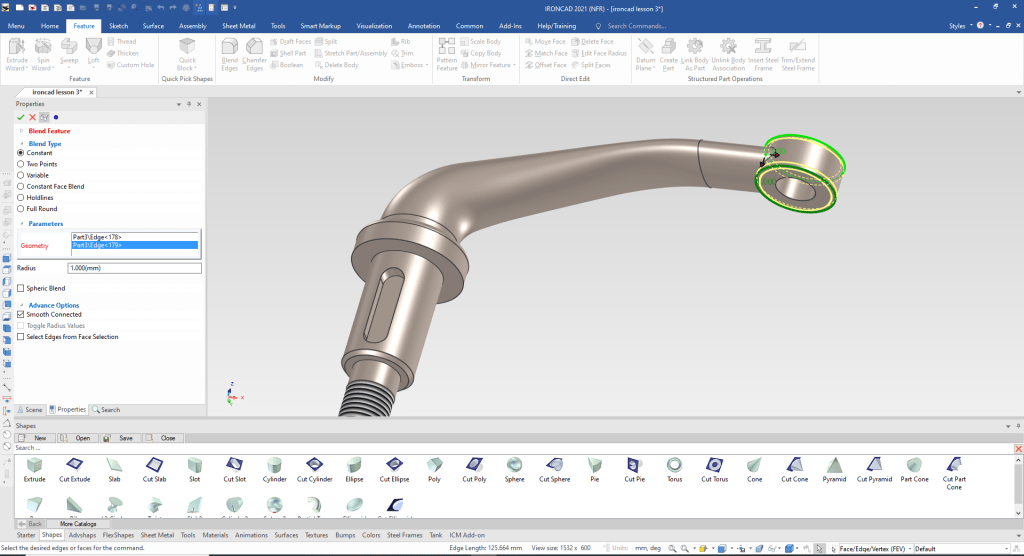
We are all done! We hide the catalog and do bit of realistic rendering. Ironcad was originally a graphic design package and has integrated realistic rendering and animation.

Here is the drawing.

You can see more on modeling techniques here.
3D Modeling Techniques Defined
Please feel free to stop by our website below for a variety of articles on the State of our Industry, interesting articles on 3D CAD Productivity and a few of our projects!

Viewpoints on Today’s 3D CAD and Engineering Industry
TECH-NET Engineering Services!
We sell and support IronCAD and ZW3D Products and
provide engineering services throughout the USA and Canada!
Why TECH-NET Sells IronCAD and ZW3D
If you are interested in adding professional hybrid modeling capabilities or looking for a new solution to increase your productivity, take some time to download a fully functional 30 day evaluation and play with these packages. Feel free to give me a call if you have any questions or would like an on-line presentation.
For more information or to download IronCAD or ZW3D
Joe Brouwer
206-842-0360
 TECH-NET, INC